Key takeaways
- Reconcile against the bank statement, never the online balance. The path is All apps, then Accounting, then Reconcile.
- Before you start, empty the For Review tab and confirm last month ended at a $0.00 difference.
- A difference that will not clear has one of four causes: beginning balance, ending balance, a missing transaction or a duplicate.
- Save every reconciliation report as a PDF outside QuickBooks, because undoing a reconciliation deletes it for good.
- Reconcile every account by the 10th and set a closing date password the same day.
In this article
- What has to be true before you open the reconcile screen
- Step by step: reconciling a bank account in QuickBooks Online
- When the Difference will not go to zero: the Four-Cause Difference Test
- Reading the Reconciliation Discrepancy Report
- Fixing prior-period changes without breaking last month
- Undoing a reconciliation, and when you should not
- Closing the books with a closing date password
- The close-by-the-10th cadence
- Frequently asked questions
It is the 8th of the month. The Difference field on your reconcile screen says $412.68, and it has said $412.68 for forty minutes. You have clicked the same twelve transactions on and off four times now, hoping one of them turns out to be the problem. None of them is.
This is the moment most people go searching for how to reconcile in QuickBooks Online, and most of what they find was written for a version of the software that no longer exists. The menu paths are wrong, the screenshots are old, and nobody explains what to do when the number will not go to zero.
This walkthrough does. It covers the setup, the clicks in order, the four things that cause every stubborn difference, and how to lock the month so it stays closed.
Quick answer
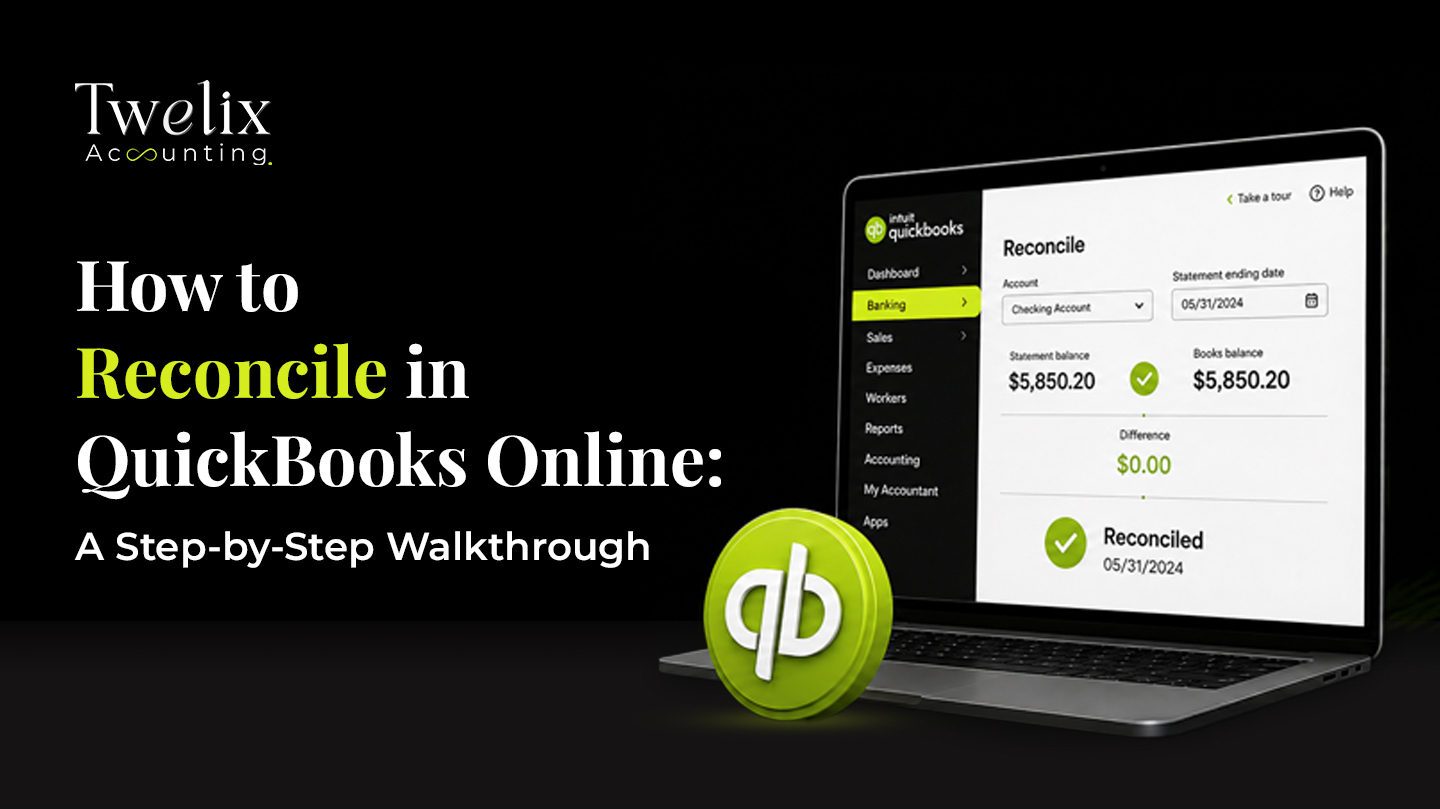
Here is how to reconcile in QuickBooks Online: go to All apps, then Accounting, then Reconcile. Choose the account, type the ending balance and ending date from your bank statement, and select Start reconciling. Check off each transaction that appears on the statement until the Difference reads $0.00, then select Finish now. If the Difference will not reach zero, the cause is one of four things: beginning balance, ending balance, a missing transaction, or a duplicate.
What has to be true before you open the reconcile screen
#Three things, and skipping any of them is where most of that $412.68 comes from.
First, the For Review tab in Bank transactions is empty for this account and this month. Every downloaded transaction has been matched, categorized, or excluded. A transaction still sitting in For Review is not in your register yet, so it cannot be cleared. It will show up on the statement and nowhere else, and you will spend twenty minutes looking for it.
Second, the bank statement PDF is open on your other screen. Not the online balance. The online balance is a live number that already includes this month's activity, pending items, and holds. The statement is a frozen number as of a fixed date, and reconciliation only works against a frozen number.
Third, last month's reconciliation ended at $0.00. Open History by account and check. If last month finished with a difference, or with an adjusting entry to force a zero, this month inherits the problem before you have typed anything.
If any of the three is not true, fix it first. The reconcile screen will not fix it for you. And if you are on extension, remember that no return can be prepared until every month is reconciled, so the order matters more than usual right now.
Step by step: reconciling a bank account in QuickBooks Online
#Four screens, in this order.
Step 1: Opening the reconcile screen
Go to All apps, then Accounting, then Reconcile. Select the Reconcile button.
That is the whole path. If you learned it as the Gear icon, then Reconcile, or as Accounting in the left menu, that route is gone. Intuit's own help article, last updated in August 2026, shows the All apps path, and most third-party guides still show the old one. If a guide tells you to click a menu you cannot find, that is why.
You also need admin access to view or edit reconciliations. A standard user cannot run one.
 View full size
Step 2: Entering the statement figures
Three fields: Account, Statement ending balance, Statement ending date.
Pick the account from the dropdown. If you have two accounts at the same bank, read the last four digits before you go on. Then type the ending balance and ending date off the statement PDF. Type them. Do not copy the register balance, and do not let the statement upload fill them in without reading what it filled.
Before you select Start reconciling, look at the Beginning balance QuickBooks shows. It should equal the opening balance on your statement to the cent. If it does not, stop here. That is cause one of the four, and the next section covers it.
 View full size
Step 3: Clearing transactions
Work in statement order, top to bottom. Do not work in QuickBooks order.
Before you check anything, open the filter and set the date range to the statement period only. QuickBooks lists everything uncleared, including transactions dated after the ending date, and those are the ones people check by accident. Filter them out first.
Then use the Payments tab and the Deposits tab separately. Clear every payment on the statement, and compare the Payments total at the top of the screen with the total withdrawals on the statement. The Difference field in the top right moves with every box you check; that is the number you are driving to zero. Switch to Deposits and do the same. When one tab ties and the other does not, you have already halved the search.
Check the box next to each transaction that appears on the statement. Leave anything that does not appear unchecked, even if you know it will clear next week. It belongs to next month.
 View full size
Step 4: Finish and save
The Difference in the top right must read $0.00 before you select Finish now. Not close. Zero. If it reads anything else, do not force it with an adjustment. Run the Four-Cause Difference Test below.
Once it reads $0.00, select Finish now, then Done. QuickBooks saves a reconciliation report under History by account. Open it, download the PDF, and save it outside QuickBooks, in the same folder as the bank statement.
Why outside? Because undoing a reconciliation permanently deletes its report. If anyone ever undoes this month, the folder copy is the only proof the work was done.
 View full size
When the Difference will not go to zero: the Four-Cause Difference Test
#Every stubborn difference we have seen comes down to one of four causes. Check them in this order, because each one is cheaper to test than the next.
- Wrong beginning balance. Compare the Beginning balance on the reconcile screen with the opening balance on the statement. If they differ, someone changed a transaction in a month that was already reconciled. Nothing you do on this month's screen will fix it. Go to the discrepancy report below.
- Mistyped ending balance. Select Edit info and read the ending balance and ending date back against the statement, digit by digit. A wrong ending date is the sneakier version. It hides transactions that should be on the list.
- Missing transaction. Something is on the statement and not in QuickBooks. Compare the Payments total and the Deposits total with the statement subtotals to find which side is short, then scan that side line by line. The usual suspects are bank fees, interest, and a transfer between your own accounts. If the gap is on the deposit side and a payment processor such as Shopify sends you net payouts, read how to reconcile Shopify payouts, fees, and sales tax.
- Duplicate transaction. Something is in QuickBooks twice, usually once from manual entry and once from the bank feed. Sort the list by amount and look for pairs.
Three shortcuts before you scan anything. If the difference is divisible by 9, it is almost always a transposition: an $18.00 difference means someone typed $202 where the statement says $220. If the difference equals exactly twice a transaction on the list, that transaction has the wrong sign, entered as a deposit instead of a payment or the reverse. If the difference is a round figure, $12.00 or $35.00, it is usually a bank fee nobody entered.
Run the test in order. Most differences are gone by step two, and almost none survive step four.
Reading the Reconciliation Discrepancy Report
#Cause one has its own tool, and the path to it is wrong in most guides.
Most guides send you to Reports and tell you to search for Reconciliation Discrepancy. Skip that. The version that shows you the fixes opens from the reconcile screen itself. Go to All apps, then Accounting, then Reconcile, pick the account, and look for the alert that reads "Your account isn't ready to reconcile yet. Your beginning balance is off by..." Select We can help you fix it. That link is the report.
 View full size
It lists reconciled transactions that were edited, moved, or unreconciled since the last close, with a What happened column showing what changed and who changed it. Select Review in tray for the fix QuickBooks suggests. Intuit's help article on beginning balance issues walks the same path.
 View full size
One thing wastes people hours. Items stay on this report after you fix them. Re-enter a deleted transaction and the original deletion still sits in the list. That is normal. The report is a history, not a to-do list. The only number that matters is the total difference. When it reads $0.00, you are done, whatever is still listed above it. And if the report looks clear but the balance is still off, the change is probably a deletion the report did not catch, which is what the next section is for.
Fixing prior-period changes without breaking last month
#The discrepancy report tells you what changed. The Audit log tells you who changed it and when, including deletions. Go to Settings, then Audit log, filter to the date range since your last reconciliation, and set the events filter to show everything. Read it before you fix anything. Some changes were deliberate. A vendor refund re-dated on purpose is not an error, and "fixing" it creates a new one.
 View full size
Then apply one decision rule.
If anything from that period has already gone outside the business, adjust forward. A filed tax return, a set of financials sent to a lender, a sales tax return, a report your CPA has already worked from. Any of those means the period is spoken for. Record the correction as a dated entry in the current month, with a memo naming the original transaction, and leave last month's reconciliation exactly as it stands.
If nothing has left the building, fix it in place. Restore the deleted transaction with its original date, mark it reconciled from the register, and confirm the beginning balance ties again.
If the changes run back more than a couple of months, this stops being a reconciliation problem. It is a cleanup, and our bookkeeping cleanup service works forward from the last clean month. It is also the first thing we do on any file that arrives behind, as cleanup work, before monthly reconciliation starts. For a sense of scale, here is what three years of unreconciled months looked like in one contractor's file.
Undoing a reconciliation, and when you should not
#There are two ways to undo, and most people should use neither.
A Primary Admin, or an accountant user through QuickBooks Online Accountant, can undo a whole reconciliation from History by account: select the dropdown in the Action column, then Undo. Everyone else has to un-reconcile transaction by transaction in the register, cycling the checkmark from R to blank. Intuit's help article covers both routes.
The catch is in the fine print. Undoing is irreversible, and it permanently deletes the reconciliation report and any attachments. That is why the step above told you to save the PDF outside QuickBooks.
Undo only when the ending balance or ending date was entered wrong and the whole month was cleared against a bad number. For one wrong transaction, un-reconcile that one transaction. For a beginning balance problem, use the discrepancy report. Undoing a month to fix one line is re-plumbing the house because a tap drips.
Closing the books with a closing date password
#Reconciled is not closed. Reconciled means the month tied to the bank. Closed means nobody can quietly change it afterward, which is the whole reason beginning balances go wrong in the first place.
Go to Settings, then Account and settings, then Advanced. In the Accounting section select Edit, turn on Close the books, and enter the closing date. Then pick the security option.
 View full size
You will see two options: allow changes after viewing a warning, and allow changes after viewing a warning and entering a password. Choose the password. The warning-only option is a speed bump, not a control. Anyone who can edit a transaction can click through a warning, and they will, usually while trying to be helpful. A password makes every change to a closed month a decision someone has to make on purpose, and the Exceptions to Closing Date report then shows you each one.
One reason people cannot find this setting: the toggle in the app is labeled Close the books, but Intuit's help article for it is titled Lock your books. Search for either and you land in the same place. Set the date to the last day of the month you just reconciled, and move it forward every month.
The close-by-the-10th cadence
#Reconciliation is not hard. It is late. Every problem in this post gets worse the longer the gap between the statement date and the day you sit down with it, because that gap is when transactions get edited, deleted, and forgotten.
So fix the calendar, not the method. Most banks post statements by the 4th of the month. That gives you six days. Reconcile every bank and credit card account by the 10th, run the Four-Cause Difference Test on anything that will not tie, save the PDF, and set the closing date the same day. Same day matters. A reconciled month left open for two weeks is a reconciled month someone will edit. Here is where reconciliation sits in the full month-end close checklist.
Ten minutes an account, once a month, on a fixed date. That is how to reconcile in QuickBooks Online and keep it reconciled. It is also exactly what an outsourced bookkeeping engagement does on your behalf, which is worth knowing if the 10th keeps arriving before you do.
Frequently asked questions
How do I reconcile a bank account in QuickBooks Online?
Go to All apps, then Accounting, then Reconcile, and select the account. Type the ending balance and ending date from the bank statement, then select Start reconciling. Filter the list to the statement period and check off every transaction that appears on the statement, working the Payments tab and the Deposits tab separately. When the Difference in the top right reads $0.00, select Finish now, then Done. Download the reconciliation report from History by account and save it outside QuickBooks. Before you start, make sure the For Review tab is empty and last month's reconciliation finished at zero, or this month inherits the problem.
Why will my QuickBooks reconciliation not balance?
Run the Four-Cause Difference Test, in order. One: the beginning balance does not match the statement's opening balance, which means a reconciled transaction was changed, so open the discrepancy report. Two: the ending balance or ending date was mistyped, so select Edit info and re-read the statement. Three: a transaction on the statement is missing from QuickBooks, usually a bank fee, interest, or a transfer. Four: a transaction is in QuickBooks twice, often once by hand and once from the bank feed. Three shortcuts help: a difference divisible by 9 is a transposition, twice a transaction is a sign error, and a round figure is usually an unentered fee.
What is the reconciliation discrepancy report in QuickBooks Online?
It is the report QuickBooks Online shows when the beginning balance for a new reconciliation does not match the ending balance of the last one. It lists reconciled transactions that were edited, moved, or unreconciled since the last close, what changed, and who changed it. To open it, go to All apps, then Accounting, then Reconcile, select the account, and select We can help you fix it under the beginning-balance alert. Items remain on the report after they are fixed, which is normal. The number to watch is the total difference. When it reads $0.00, the beginning balance is correct and you can start reconciling.
How often should a small business reconcile in QuickBooks Online?
Monthly, for every bank and credit card account, as soon as the statement is available. Most US banks post statements by the 4th of the month, so a realistic target is every account reconciled and the closing date set by the 10th. Reconciling quarterly or at year end multiplies the work, because every edited or deleted transaction from the months in between lands in one discrepancy report, and nobody remembers why each change was made. A business with heavy card volume can check activity weekly against the online balance, but the formal reconciliation is always against the statement, once a month.

CA Jaimin M.
Founder & CEO, Twelix Accounting
Published · Updated
Jaimin M. is the founder and CEO of Twelix Accounting, where he leads strategy and overall direction. A Chartered Accountant with more than eight years in U.S. accounting, he shapes how Twelix delivers outsourced bookkeeping and accounting services to small businesses. When he is not running the company, he is deep in a game, insisting it is helping his strategy skills.
Connect on LinkedIn